Quant Intelligence · Desktop
Your first session (about 20 minutes)
This walkthrough matches the download email: install the desktop app, paste your 14-day Basic key, add one LLM API key, set up the bundled conda environment (manually or via the in-app setup chat prompt), refresh MCP libraries to latest, then run a Basic research sample (Yahoo + backtest). Pro users can optionally try the Futu live-data sample.
Copy setup prompt for chat
After Miniconda is installed, paste the text below into Atabet Quant Intelligence chat (or use Insert setup prompt in the first-session banner).
Before you open the app
- Request the installer from the product page — the email includes macOS / Windows / Linux links and your trial license key.
- Install Miniconda or Anaconda if you do not have it yet. The app bundles environment.yml (same file as in the atabet-quant-intelligence repo) to create one env named atabet_env for Data, Trader, Terminal, and local Python tools.
- Have at least one LLM provider API key ready (Gemini, OpenAI, Claude, DeepSeek, etc.). Keys stay on your machine only.
- Pro optional: for the live Futu sample only, install Futu OpenD, log in, and keep it running. Basic trial users can skip this and use the Yahoo research sample.
Install and launch
Open the installer from your download email, drag Atabet Quant Intelligence into Applications (macOS) or run the setup wizard (Windows). On first launch, paste the license key from the same email when the app asks for it.
- 1
Open Settings
Click the gear icon in the header. You will return here for API keys, Python, and license renewal.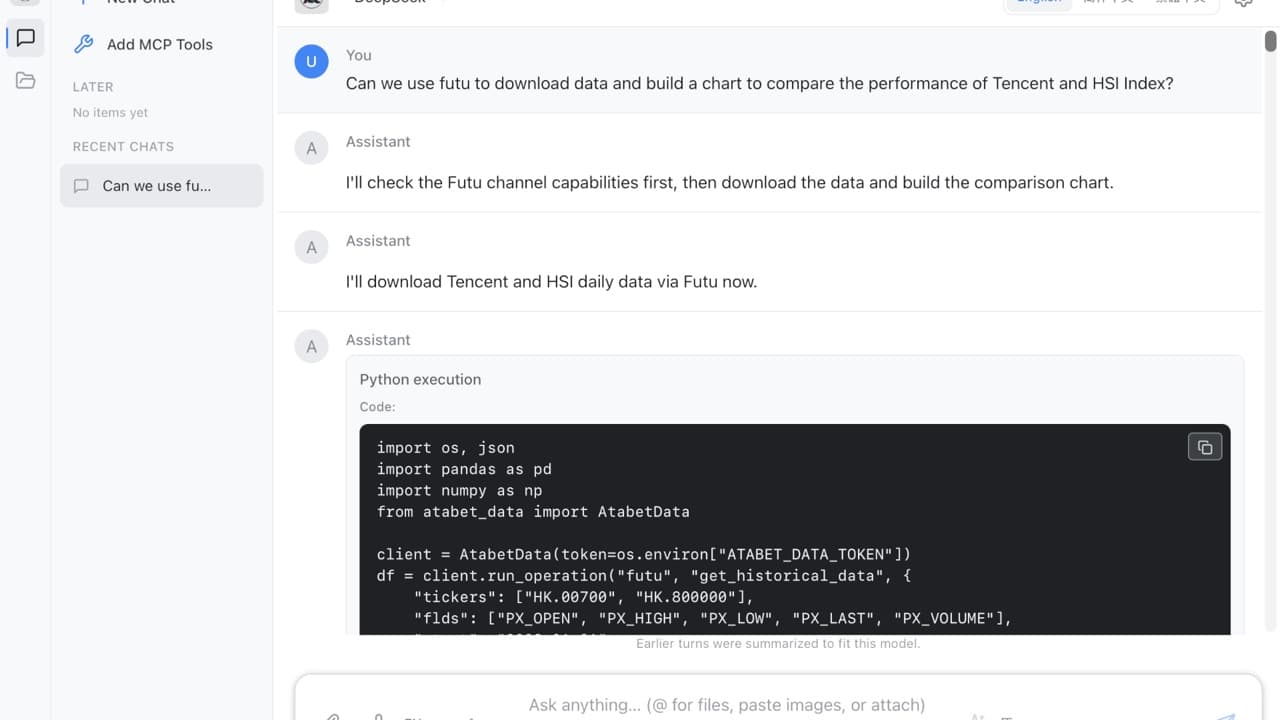
- 2
Add an LLM API key
Open Models & keys, choose a provider, and save an API key locally. You do not paste Atabet Data or Trader tokens here — those are injected from your license when the app launches. The 14-day Basic trial starts at first successful activation (see Account & app), not when the email was sent.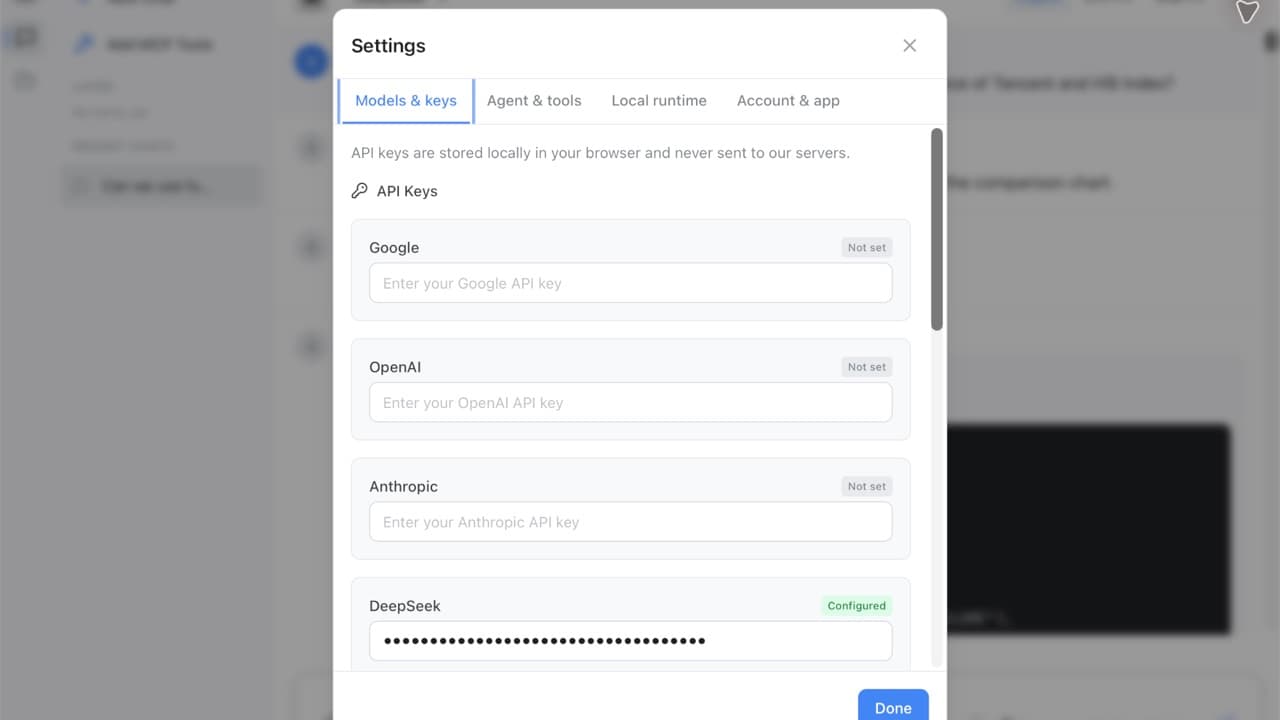
- 3
Set up local Python
Open Local runtime. Copy the bundledenvironment.ymlpath (Copy path / Reveal in Finder), then runconda env create -f "…"once. Or use the first-session banner → Insert setup prompt and let the agent create the env, install latestatabet-data/atabet-trader, and configure Settings for you (approve shell/install cards when asked). Select Conda: atabet_env and click Test execution. License tokens are injected automatically.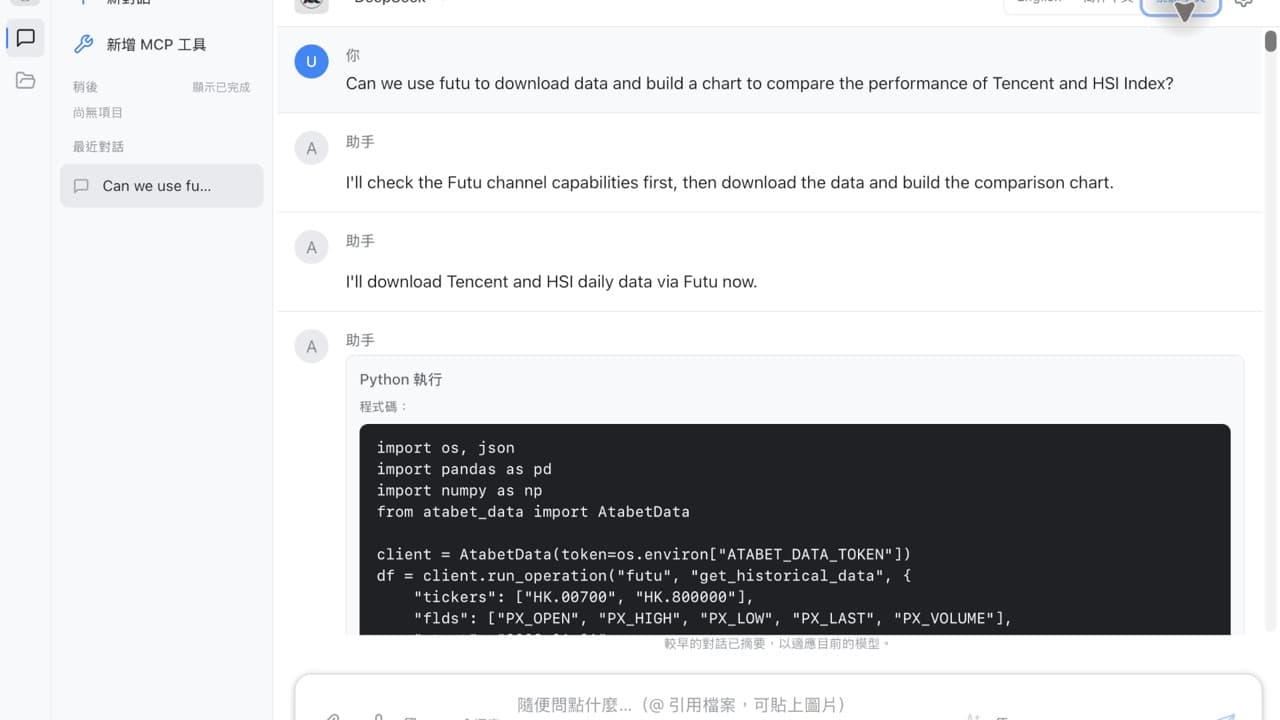
- 4
Refresh MCP libraries
Click Add MCP Tools in the sidebar. For built-in packages such asatabet_dataandatabet_trader, choose Latest (or Use latest) and click Apply on each row so the agent gets up-to-date API docs and samples. Applying can also install that version into your selected Python env. Click Done when finished.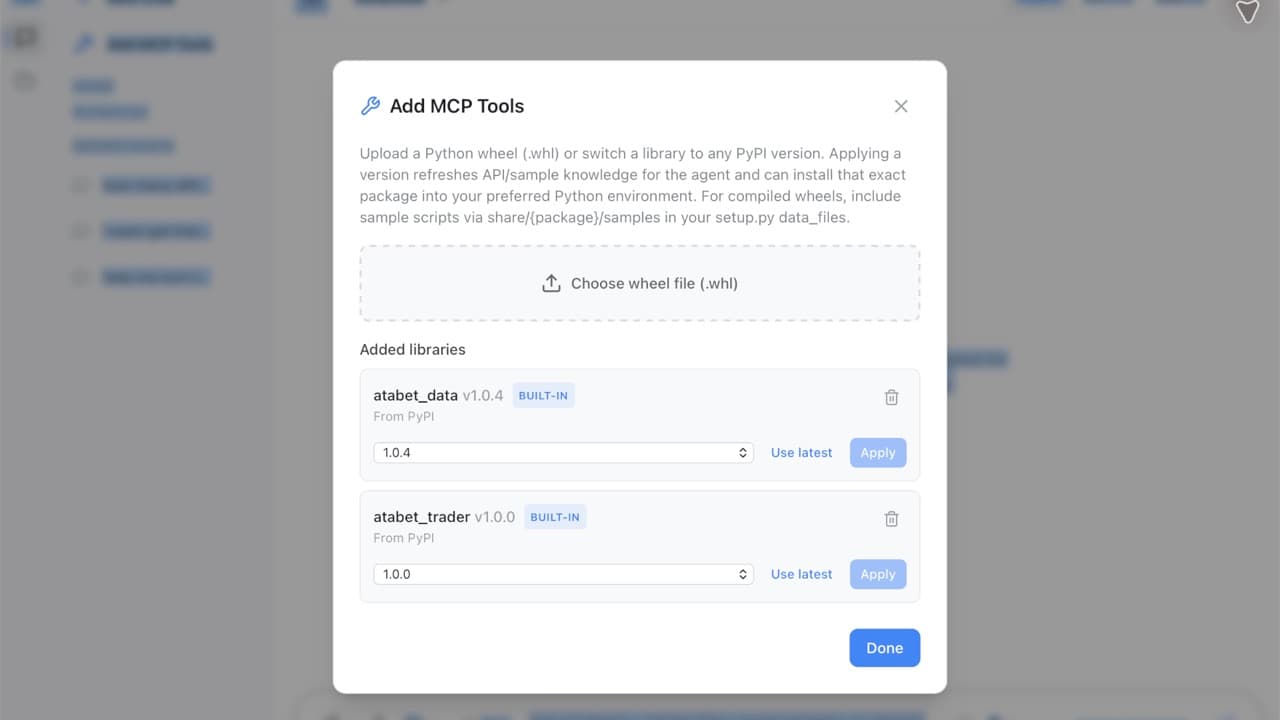
- 5
Open a project folder (optional)
Use the folder icon in the sidebar to open a workspace (for example a new empty folder). The agent can read and write files there, run Python, and save charts or notes. You can skip this for the sample chat-only prompt below.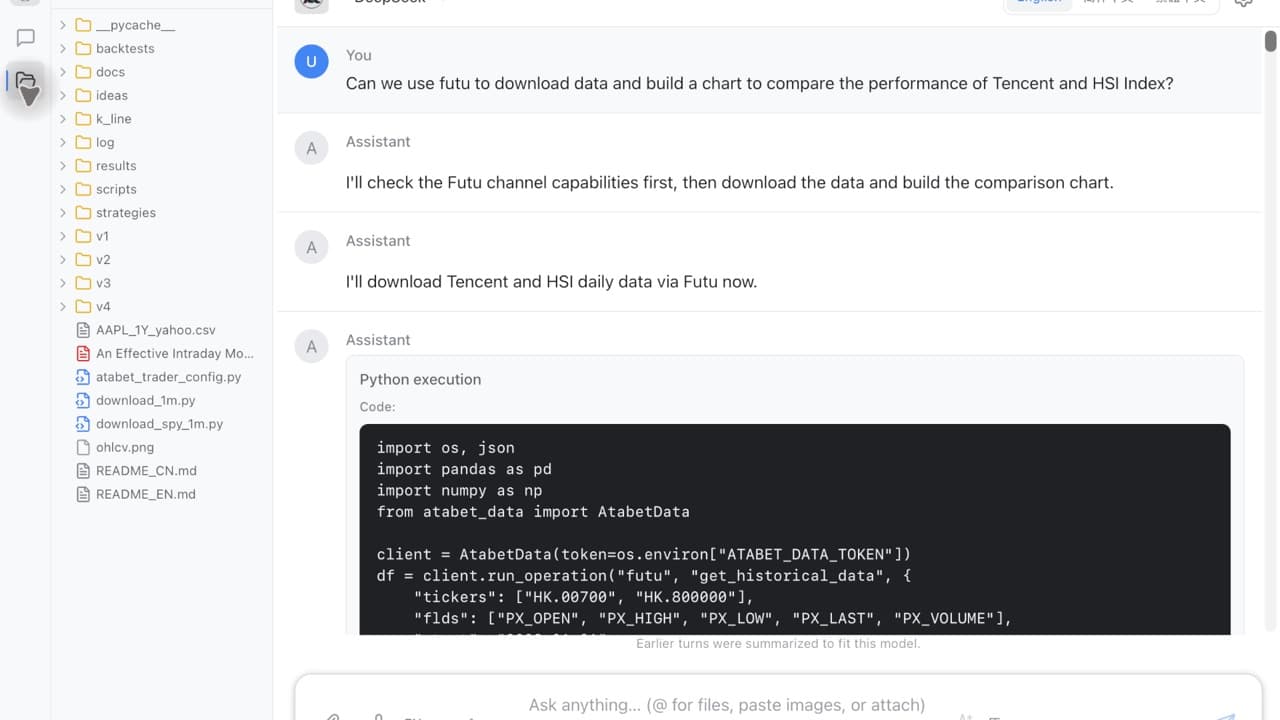
- 6
Send a research sample prompt
Pick a model with an API key. Use the in-app Insert Basic research sample button (Yahoo daily data + optional SMA backtest — works on Basic trial). Pro optional: with Futu OpenD running, use Insert Pro live-data sample (Tencent vs HSI via the Futu channel).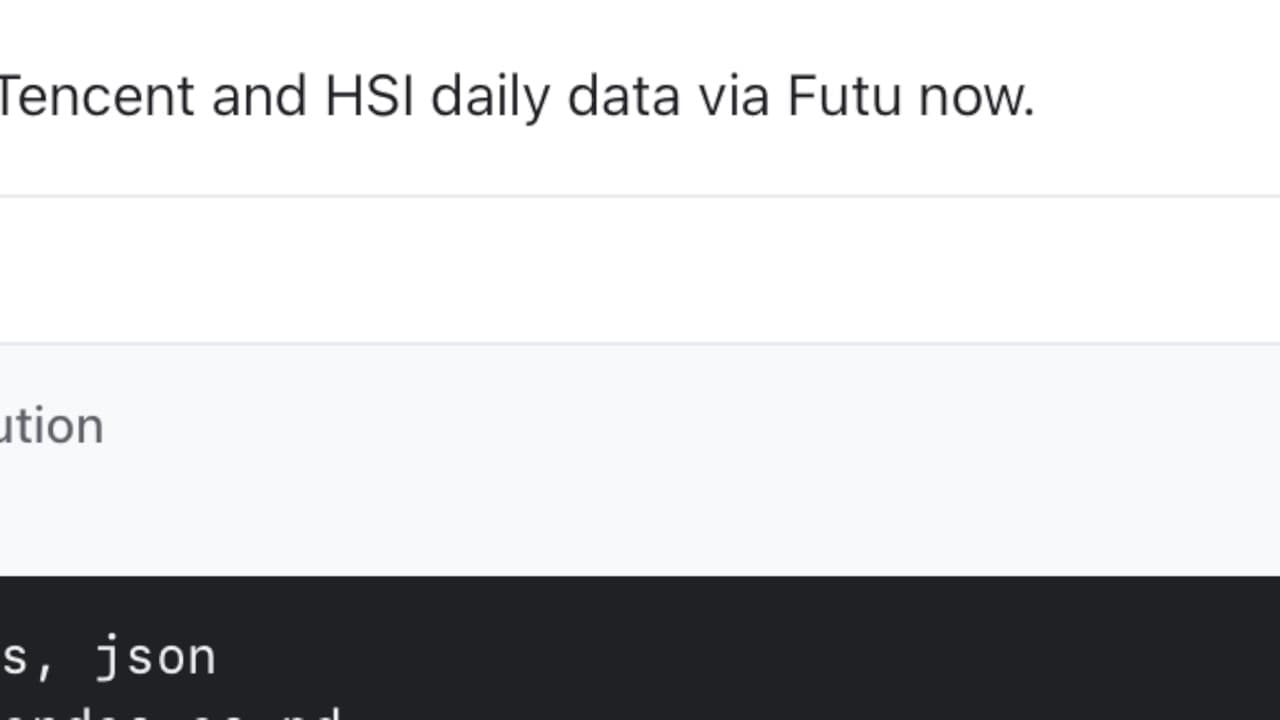
- 7
Follow Python output in chat
Tool cards show Python execution, stdout, and errors inline. Approve package installs or shell commands when prompted. When the run succeeds, tables and Plotly charts can appear below the tool card. If Futu is offline, fix OpenD first and retry the same prompt.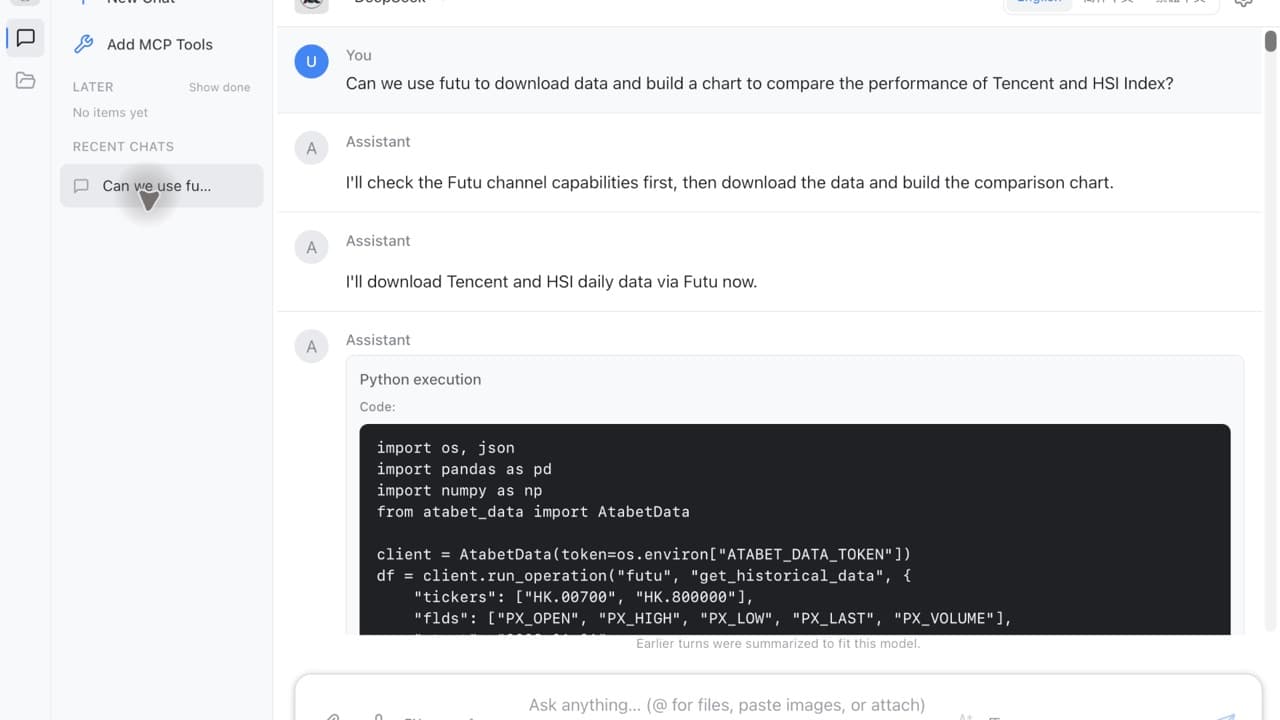
Need help?
If activation or conda setup fails, email us with your account email and operating system. We respond during Hong Kong business hours.
info@atabet.com